Handling Buyer Access Requests
When a buyer needs more than their limits allow, the request comes to you with Approve/Deny buttons. The full loop: what you receive, how to respond, and what completes the grant.
The access-request loop is the DDM's pressure valve: it's how "protected by default" coexists with "no paying customer ever stranded." Here's the complete circuit, from the buyer's click to the grant landing.
What triggers a request
A buyer whose self-serve options are exhausted — downloads used up in the current window, or renewals fully spent — sees a Request more access option on their download page. One click sends it. Requests come in two kinds, matching what ran out: additional downloads (more downloads in the current window) or a renewal (another session window). The system allows one pending request per buyer per kind, so you'll never be spammed by an anxious clicker — repeat clicks just confirm it's already pending.
What you receive
Two things happen the moment a request is filed:
- An email lands in your inbox — identifying the listing, the buyer's email, and what they're asking for, with Approve and Deny buttons right in the email. Each button is a secure single-use link tied to that specific request — you can act from your phone in the checkout line without logging into anything.
- The request appears in the app — on that listing's Manage Downloads view, the buyer's row is highlighted with the pending request and one-click grant buttons.
Either surface works; use whichever you're nearer to.
Responding from the email
- Deny → the request is closed (terminal), and the buyer receives a polite notification that the request wasn't granted. No further action needed from you. Use sparingly — a deny should mean "this looks abusive," not "I'm busy."
- Approve → two things: the buyer is immediately emailed that their request was approved, and you get a confirmation page with one remaining step — the grant itself is completed in the app, from the listing's Manage Downloads screen. Approval is the decision; the grant is the action. The confirmation page (and a follow-up note) link you straight there.
Why the two-step? The email buttons are deliberately lightweight — decision-making tools, not authenticated app actions. The grant happens where your full seller context lives.
Completing the grant in Manage Downloads
Open the listing → Manage Downloads. Pending requests are impossible to miss — the buyer's row is highlighted, showing exactly what they asked for, with matching one-click actions:
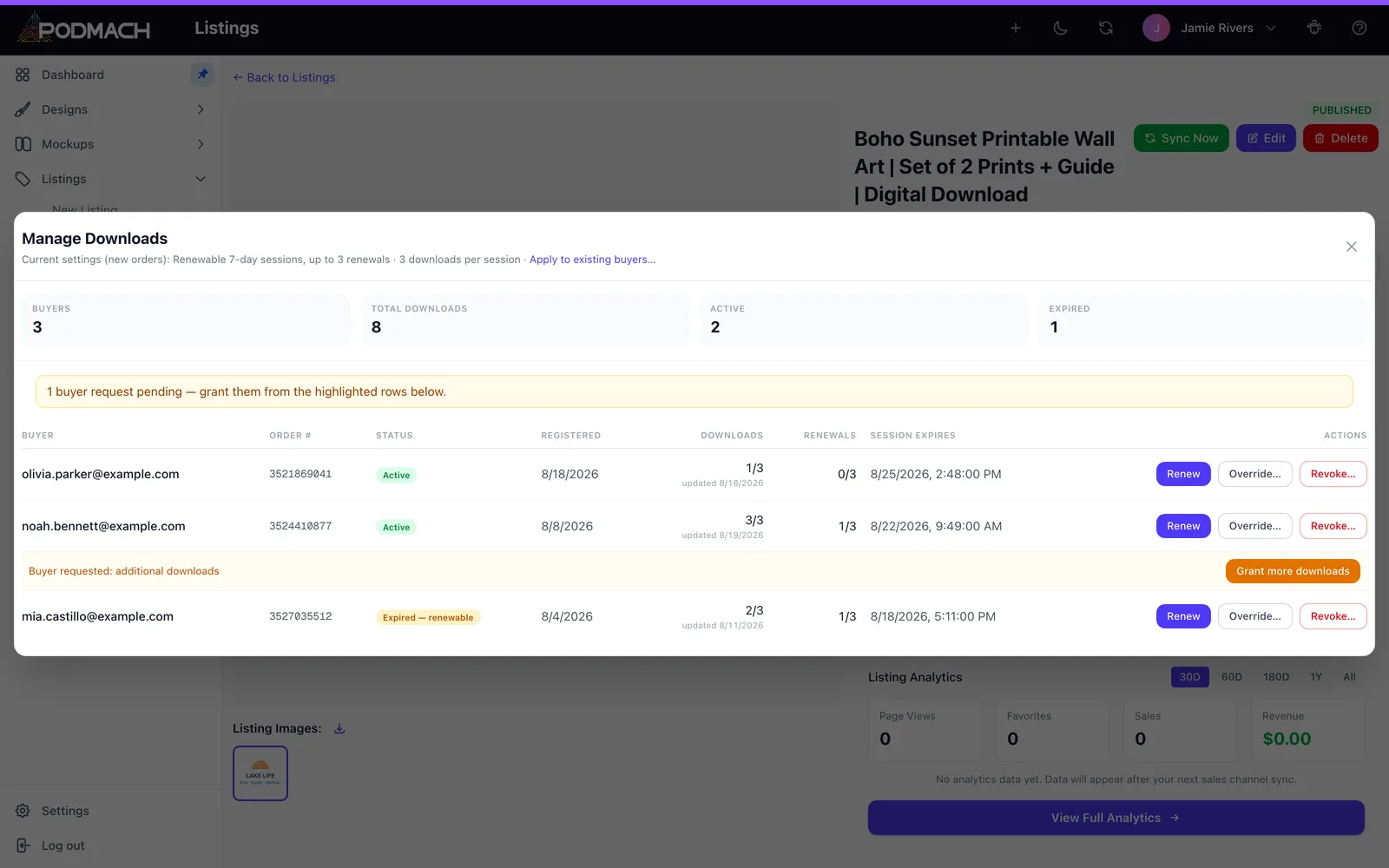
- Grant more downloads — resets the buyer's download counter for the current window.
- Grant renewal — extends their session by another window (with its fresh download allowance).
Click the grant, and the loop closes itself: the buyer is automatically notified by email that their access is ready, with their download link. Nothing else to do.
The whole loop, timed honestly
Buyer clicks request → your email arrives within moments → you tap Approve → buyer instantly hears "approved" → you complete the grant in-app when convenient → buyer instantly hears "ready." Even with hours between your two touches, the buyer is informed at every stage — which is what turns a limit into good service instead of a support ticket.
Judgment guide
Default to granting. The requests you'll actually receive are overwhelmingly legitimate — new device, lost files, a re-download months later — and a granted request from a protected system still costs you nothing like what an open Google Drive link does. The pattern worth attention isn't one request; it's many requests on one session — and because every request and grant is visible in Manage Downloads, that pattern can't hide. Protection isn't the wall; it's the visibility.
Next: Managing Your DDM Listings — the seller dashboard for all of this.
Continue the Digital Downloads & the DDM path
Managing Your DDM Listings
7 min read