Managing Your DDM Listings
The day-to-day of running DDM products: the Manage Downloads view, reading buyer activity, changing expiry settings after publish, and the habits worth keeping.
Once a DDM listing is live, everything about running it happens from the listing itself. This guide is the operating manual.
Manage Downloads: your control room
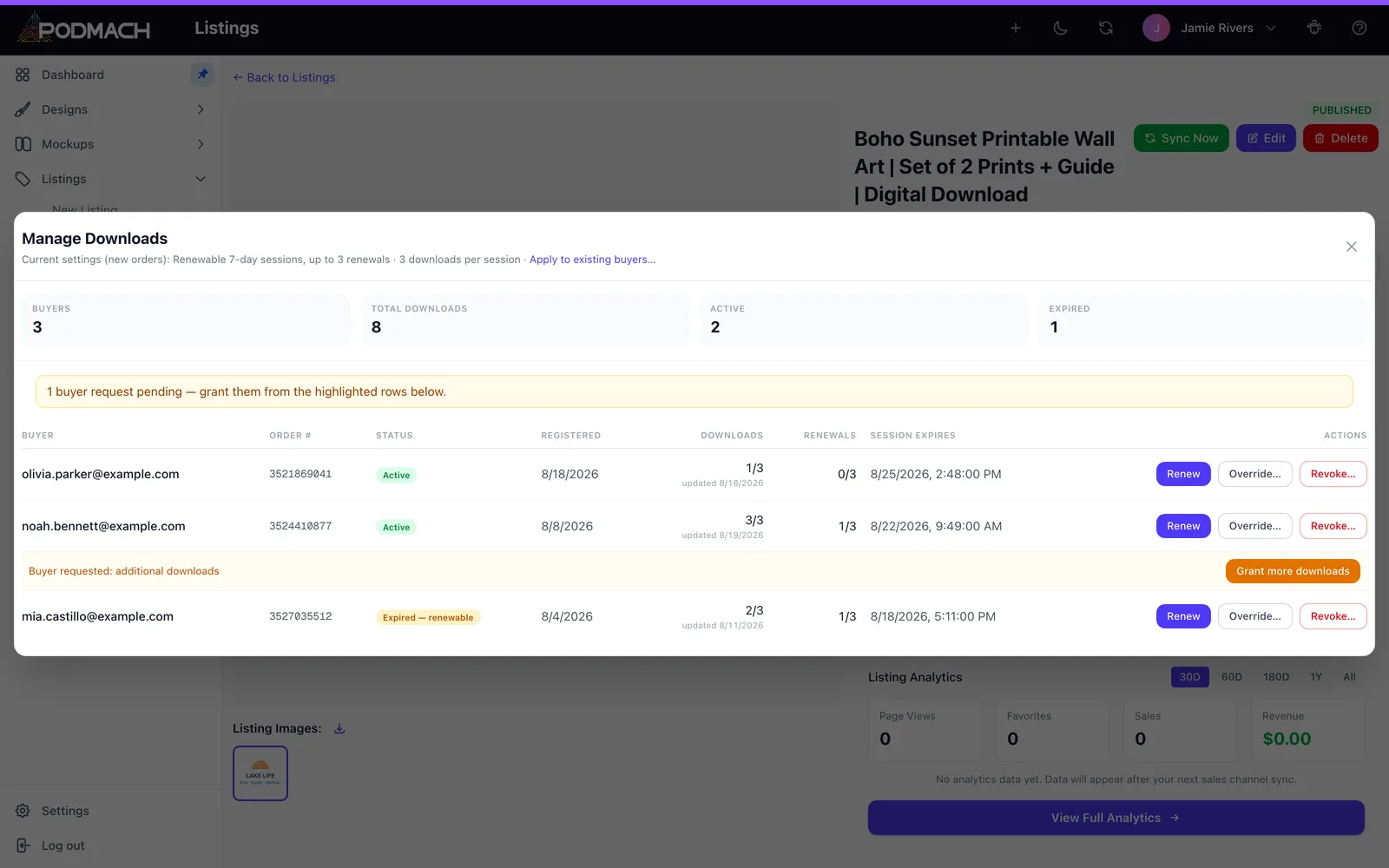
Open any DDM listing and its Manage Downloads view — this is where the whole system becomes visible. At the top, the listing's current access policy in plain language (e.g., "Renewable weekly sessions, up to 3 renewals, 3 downloads per window") and the aggregate numbers. Below, one row per buyer:
- Buyer email and confirmation status
- Session state — active, expired-but-renewable, or fully expired
- Renewals used and downloads used in the current window
- Last download activity
- Pending requests, highlighted, with their one-click grant buttons (covered in Handling Buyer Access Requests)
Reading this table answers every question that used to be unanswerable with public-link delivery: Who actually downloaded? Is anyone bumping against limits? Is one session's activity out of line with everyone else's?
Seller actions, per buyer
From any buyer's row you can act directly — no request required:
-
Grant more downloads — reset their current window's download counter (the kindness button when someone emails you instead of using the request flow).
-
Grant a renewal — extend their session another window.
-
Revoke a registration — the reset button for when a registration went wrong: the buyer mistyped their email, used the wrong address, or something in the confirmation process misfired. Revoking removes that buyer's registration entirely — their current access link stops working, the download history for that order is cleared, and the order becomes verifiable again from scratch: the buyer simply opens their delivery link and registers fresh with the correct email, starting a clean session with full expiry and download allowances. Other buyers on the listing are completely unaffected. You'll find it on the buyer's row with a confirmation step (it's deliberately hard to hit by accident).
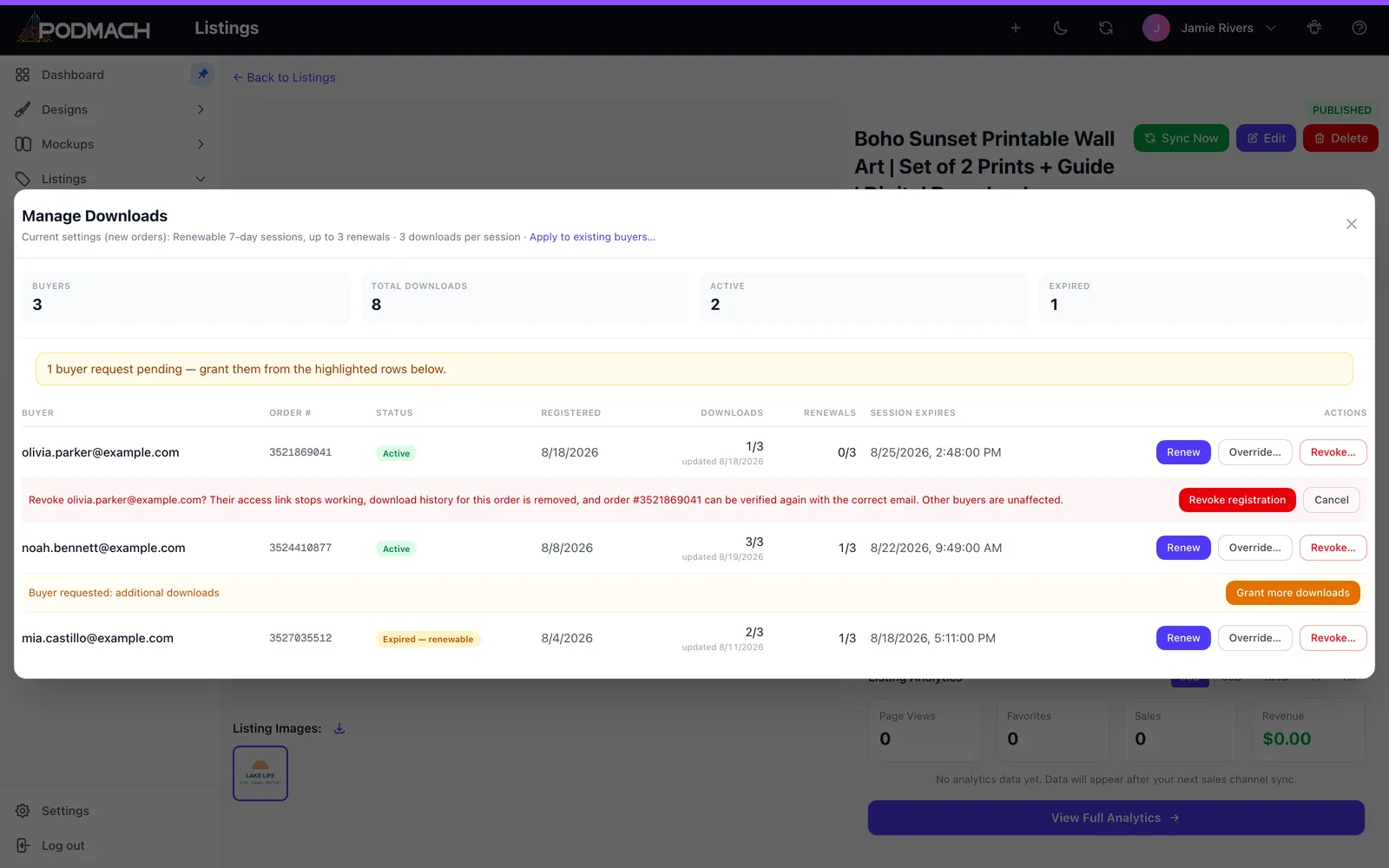
These are the same operations the request loop uses; the request flow just queues them up with the buyer's ask attached. Proactive grants are equally legitimate — someone messages you on Etsy about a lost file, you open the row, click, done. And revoke means a botched registration is never a support saga: reset, have them re-register, done.
Changing the rules after publish
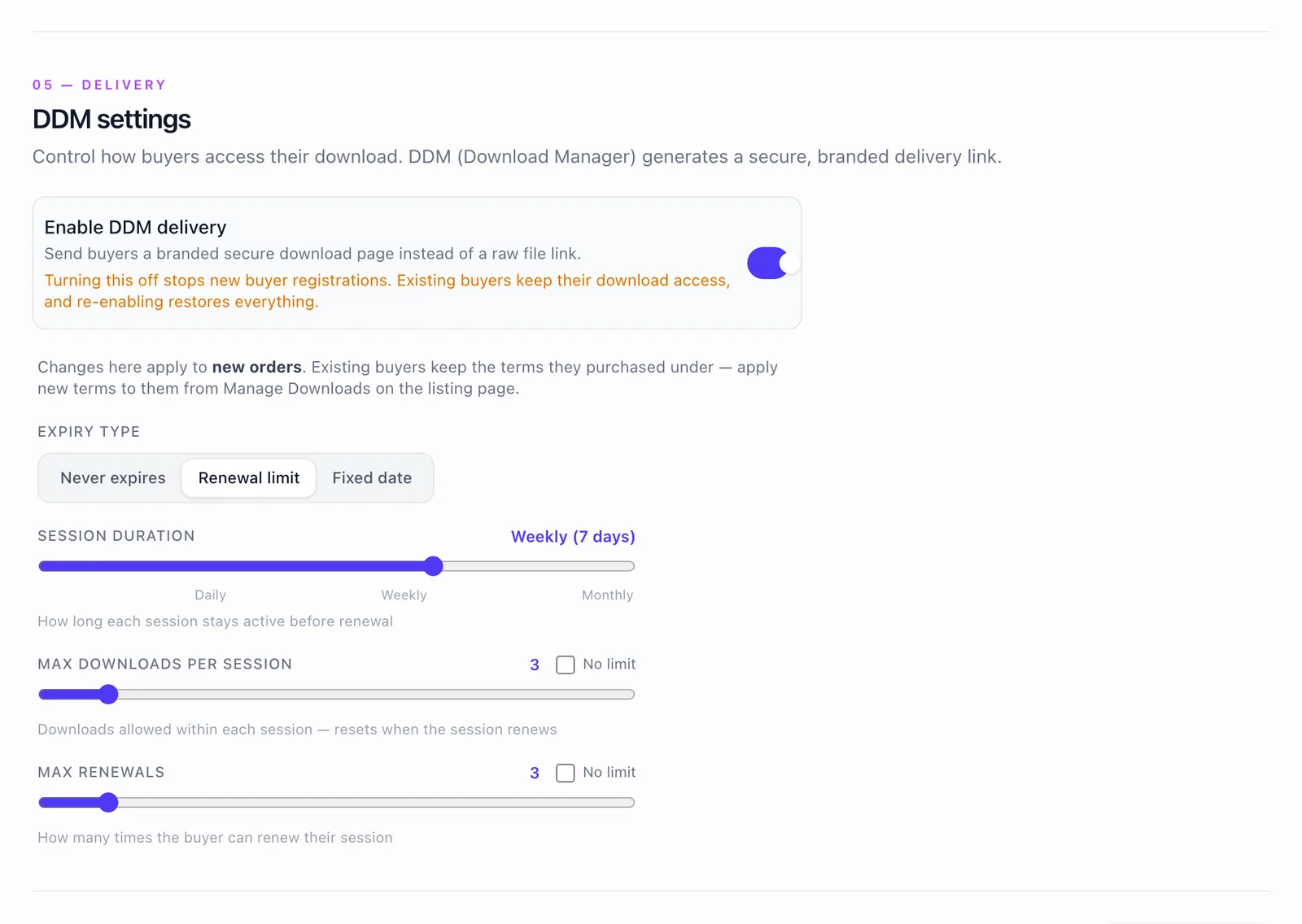
A listing's DDM settings — expiry type, max renewals, downloads per window, final expiration date — are editable any time from the listing's DDM settings. By default, changes govern sessions going forward: existing buyers' current windows finish under the terms they started with, and the new policy applies as sessions renew and new purchases arrive. When you want new rules to reach current buyers too, the settings header offers Apply to existing buyers — an explicit choice, so it never happens by surprise. Practical implications:
- Loosening is painless — raise the download allowance or renewal count and buyers simply feel more room as they renew.
- Tightening is fair — nobody's mid-window access yanks out from under them, but the stricter policy takes hold naturally.
- Setting a final expiration on a previously open-ended listing is the clean way to sunset a product: existing buyers get their remaining windows; the calendar does the rest.
This is why start protective, loosen with evidence is safe advice (see the recipes in Expiry, Renewals & Download Limits) — every setting stays in your hands forever.
Orders and download activity
Each DDM sale ties together the channel order, the buyer's session, and their download history — so from the listing you can trace any purchase to its delivery state, and from your Orders view the sale carries its digital-delivery context. When a buyer references an order in a message, you have the whole picture in two clicks: what they bought, whether they confirmed, what they've downloaded, and where their session stands.
The habits that keep it effortless
- Respond to request emails same-day. The loop is built so this takes seconds; buyers who hear back fast leave the reviews you want.
- Glance at Manage Downloads when a listing sells well. Thirty seconds of table-reading per week is the entire "monitoring" burden.
- Revisit settings when evidence accumulates. Lots of renewal exhaustion followed by requests? Your window or renewal count is one notch too tight — loosen it and the requests stop arriving.
- Use the final expiration deliberately, not defensively. It's for products that should end, not a panic lever.
Run this way, a DDM catalog is close to zero-maintenance: the system meters, verifies, and notifies; your job is the occasional one-click grant and the strategy.
One more tool for your kit: Accessing Your Digital Purchase is a buyer-facing guide you can link directly in listings and messages — it answers "where are my files," registration, renewal, and requests in your customers' language.
This completes the seller side of the Digital Downloads path. For the listing-creation mechanics, revisit Digital & Multi-Product Listings; for the philosophy, How the DDM Protects Your Files.